
Whether you're a freelancer sending your first-ever proposal or an agency switching from PDFs, this step-by-step guide will walk you through everything MyProposer can do — from sign-up to getting paid. No prior experience required.
Step 1: Create Your Free Account
Head to app.myproposer.com/signup and create your account in under 30 seconds. You can sign up with your email or Google account. No credit card is required — MyProposer's free tier lets you send proposals, track deals, and collect e-signatures immediately.
Once you're in, you'll land on your Dashboard — the command center for your entire sales operation. From here you can see your pipeline, recent proposals, and key metrics at a glance.
Step 2: Set Up Your Profile & Branding
Before creating your first proposal, take 2 minutes to personalize your workspace:
- ✦Company Info: Add your business name, logo, and contact details. These appear automatically on every proposal you send.
- ✦Brand Colors: Set your primary and accent colors so proposals match your visual identity without manual formatting.
- ✦Payment Info: Connect your Stripe or PayPal account so clients can pay directly from signed proposals. This step is optional but highly recommended.
Step 3: Create Your First AI Proposal
This is where MyProposer shines. Click "New Proposal" from your dashboard and choose "AI Generate." You'll be asked for three things:
- 1.Client Name: Who is this proposal for? (e.g., "Acme Corp")
- 2.Project Description: A brief description of what you're proposing. Be specific — "5-page website redesign with SEO for a Houston dental practice" gives the AI much more to work with than "website project."
- 3.Budget Range: Optional, but helpful. If you include a range, the AI will structure pricing tiers accordingly.
Hit "Generate" and watch MyProposer's AI build a complete proposal in under 60 seconds. It includes an executive summary, scope of work, timeline, pricing table, and terms — all formatted with your branding.
Step 4: Customize & Add Your Personal Touch
The AI gives you an excellent starting point, but the best proposals include your unique expertise. Use the drag-and-drop editor to:
- →Edit any section: Click into any text block to rewrite, expand, or refine the AI's output.
- →Add case studies: Drop in past work examples or testimonials that are relevant to this specific client.
- →Adjust pricing: Modify the interactive pricing table — add line items, set quantities, or create tiered packages. Clients will see totals update live when they interact with it.
- →Set an expiration date: Add urgency by setting when the proposal offer expires.
Step 5: Send It & Track Engagement
When you're ready, click "Send Proposal." You have two options:
- 📧Email directly: Send the proposal from your connected Gmail account. The client receives a branded, interactive link — not a PDF attachment.
- 🔗Copy the link: Grab the shareable URL and send it via any channel — WhatsApp, Slack, LinkedIn DMs, or your own email client.
Once sent, MyProposer tracks everything: when the client opens it, how long they spend on each section, how many times they revisit, and whether they've viewed pricing. You'll get push notifications for key events so you know exactly when to follow up.
Step 6: Get It Signed With Built-in E-Signatures
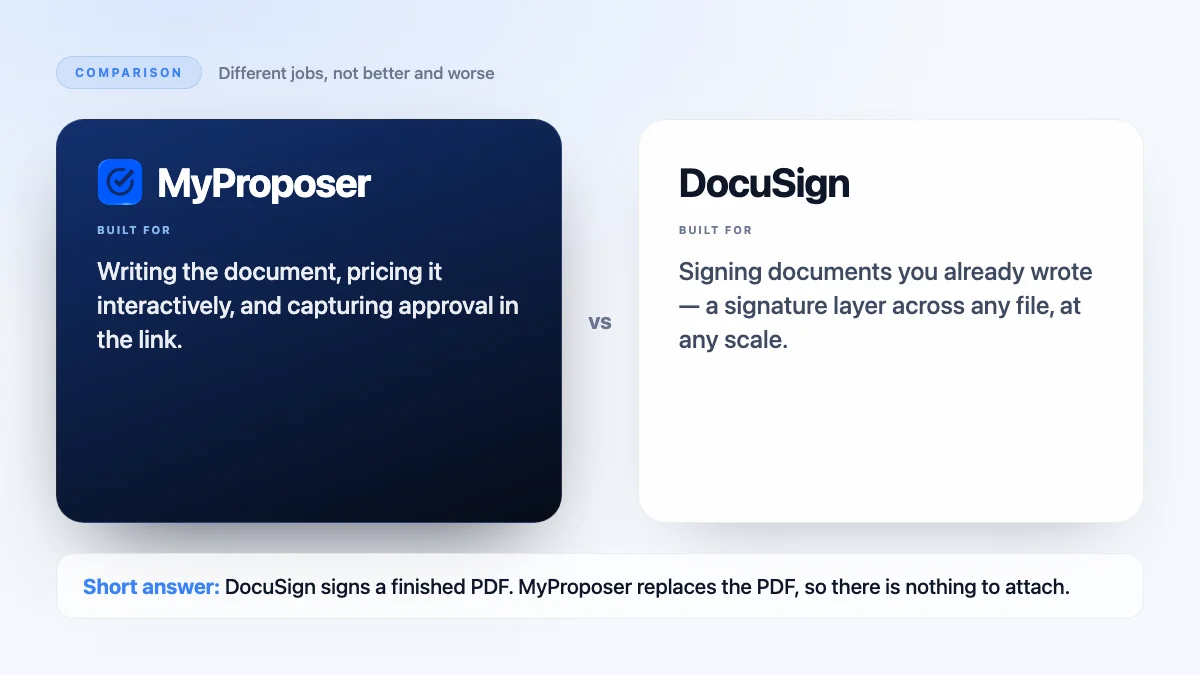
Your proposal includes a built-in e-signature block. When the client is ready to proceed, they sign directly on the proposal page — no DocuSign, no separate contracts, no printing and scanning. Both you and the client receive a signed copy via email instantly.
Step 7: Manage Your Pipeline With the Built-in CRM
Every proposal you create automatically appears in your CRM Pipeline — a visual Kanban board that tracks deals through stages: Lead → Discovery → Proposal Sent → Negotiation → Closed Won. As proposals are viewed and signed, deals move through the pipeline automatically.
You can also manually add deals for conversations that haven't reached the proposal stage yet. The pipeline gives you a bird's-eye view of your entire sales funnel at any time.
Step 8: Send Invoices & Get Paid
Once a proposal is signed, generating an invoice is one click. MyProposer pulls the pricing and client details directly from the signed proposal — no re-entering data. Clients can pay online via the payment link, and you can track payment status from your dashboard.
Pro Tips for Getting the Most Out of MyProposer
- 💡Use templates: Save your best proposals as templates. Next time you have a similar project, start from a proven structure instead of generating from scratch.
- 💡Enable notifications: Turn on push notifications so you know the instant a client views or signs your proposal — timing your follow-up is everything.
- 💡Use tiered pricing: Proposals with 3 pricing tiers consistently close at higher values. Let clients choose their level of investment.
- 💡Add interactive quotes: For complex projects, use the interactive quote builder where clients can select individual services and see the total update in real-time.